Quiz Management
Create and publish quizzes for your batches. Supports 6 quiz types with configurable duration, marks, negative marking, and section timing.
Video Walkthrough
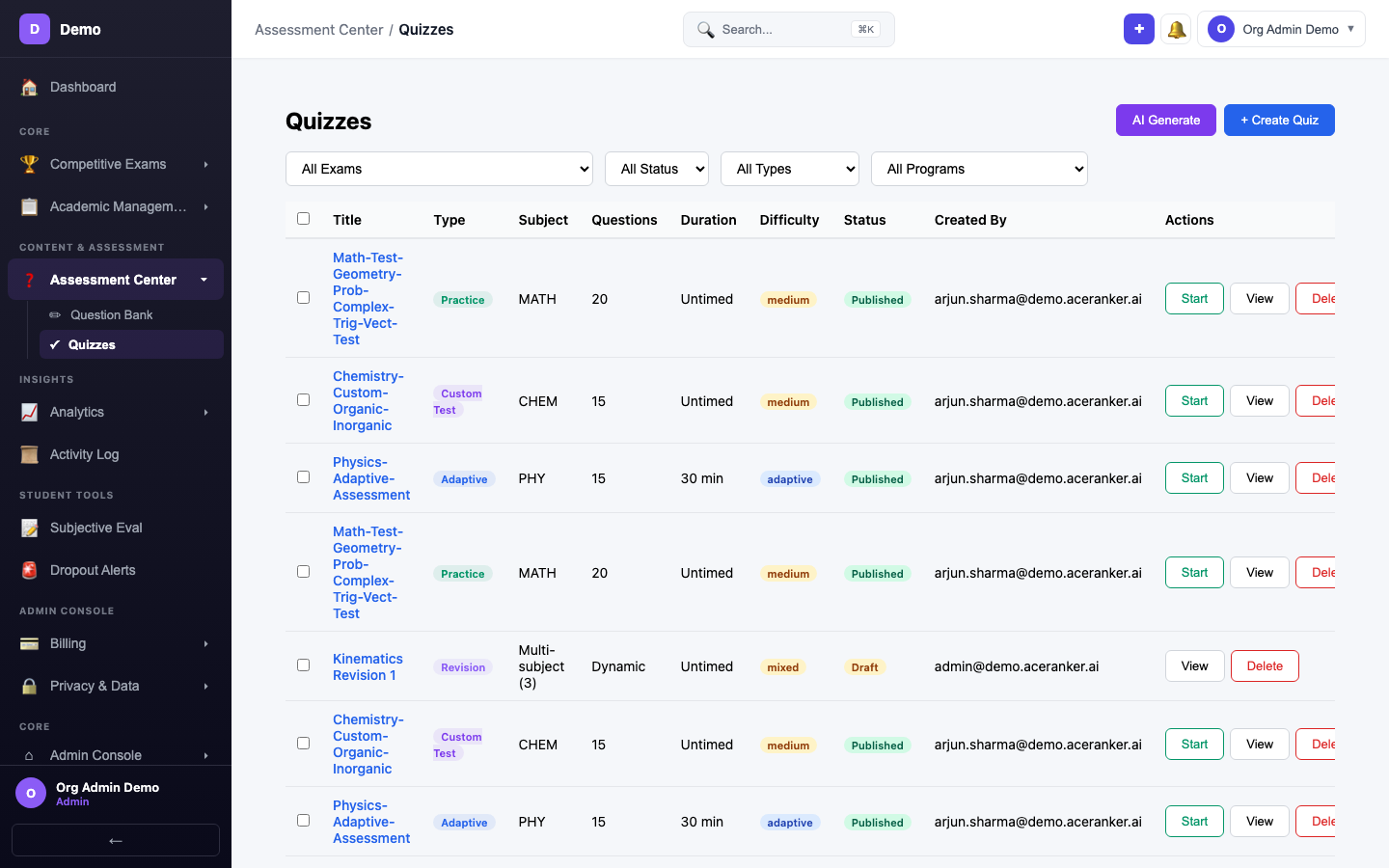
Quiz List
Navigate to Assessment Center → Quizzes to see all quizzes with status and type filters.
Creating a Quiz
Click + Create Quiz to launch the 3-step quiz creation wizard.
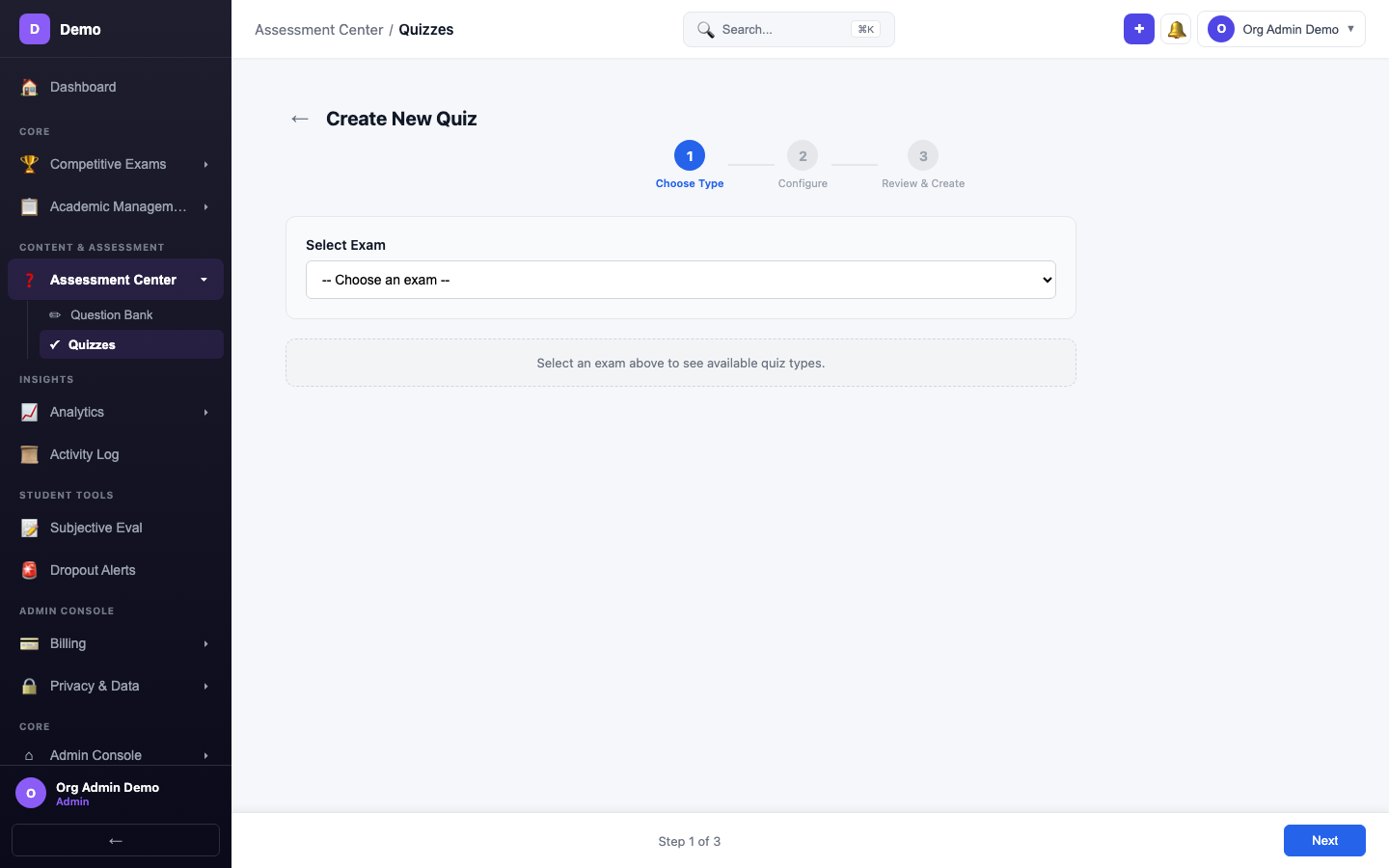
Step 1 — Select Exam
Choose a competitive exam (e.g., JEE Mains) from the dropdown. This loads the available quiz types enabled for that exam.
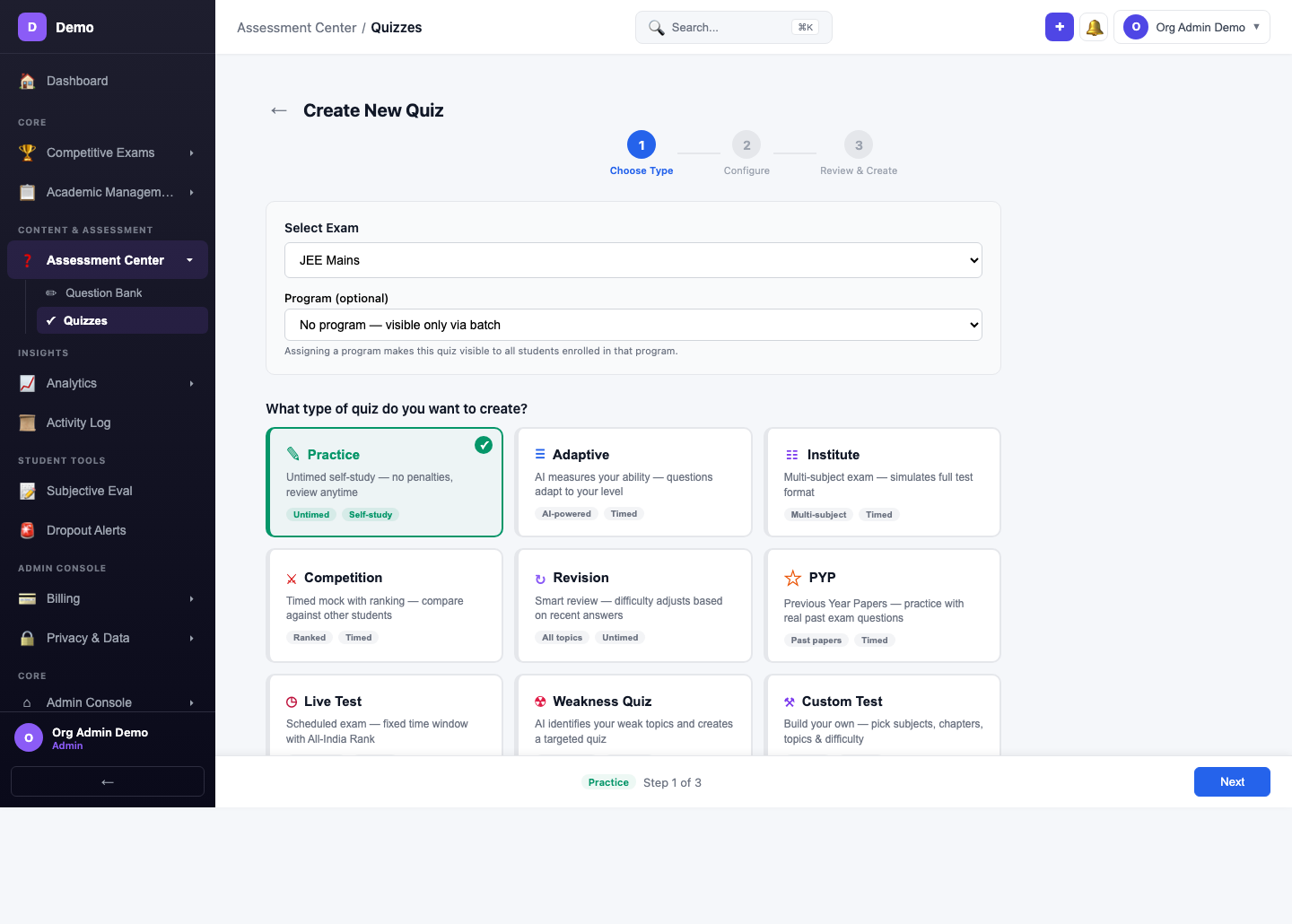
Select Quiz Type
Choose a quiz type card. Types are grouped into categories: Practice, Improve, and Challenge.
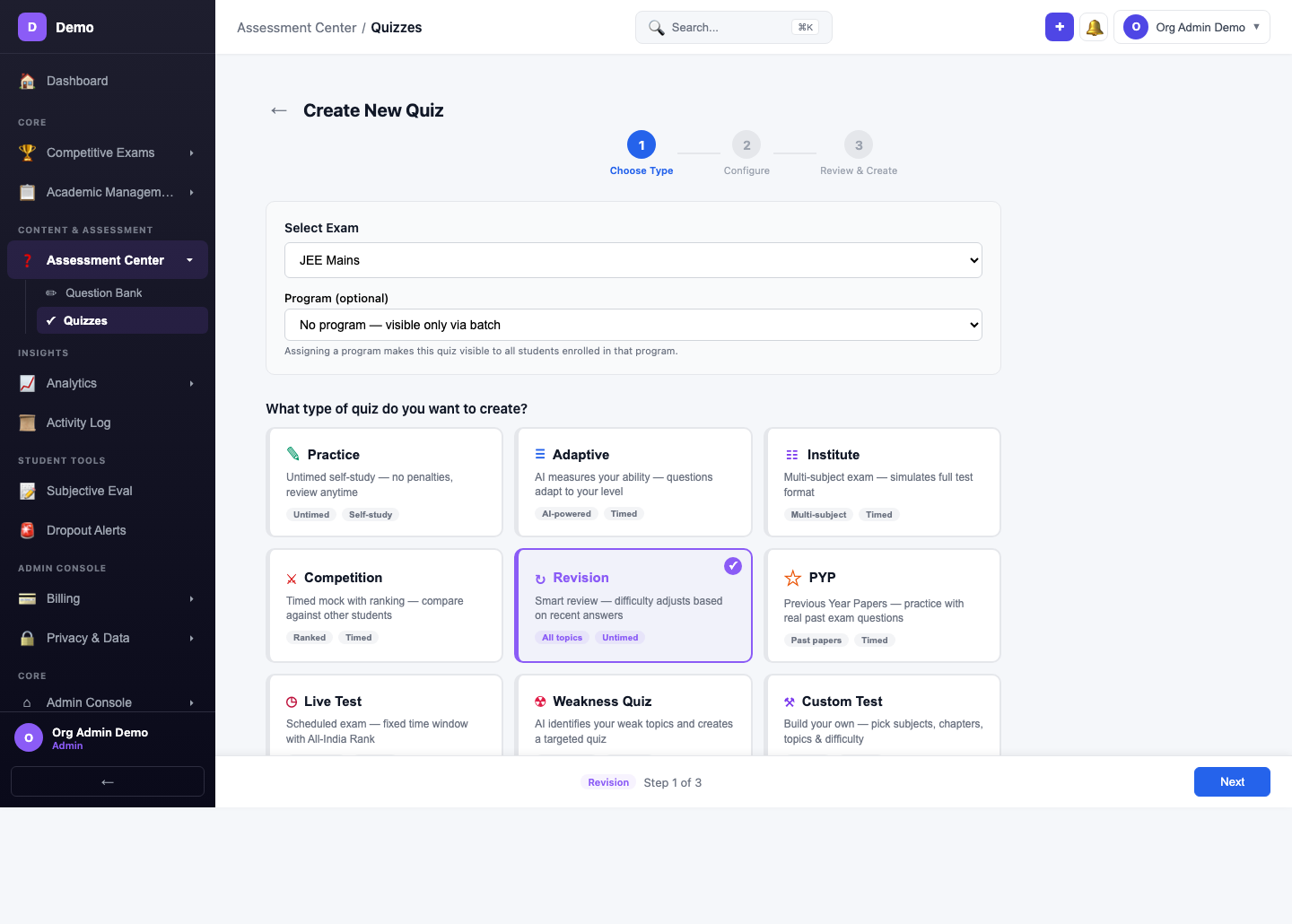
Quiz Types
| Type | Description |
|---|---|
| Practice | Untimed practice with instant feedback |
| Institute | Formal assessment with fixed schedule |
| Live Test | Real-time proctored exam |
| PYP | Previous Year Paper simulation |
| Revision | Quick review quiz on weak topics |
| Custom | Fully configurable quiz format |
Step 2 — Enter Quiz Title
Enter the quiz title — e.g., Kinematics Revision 1.
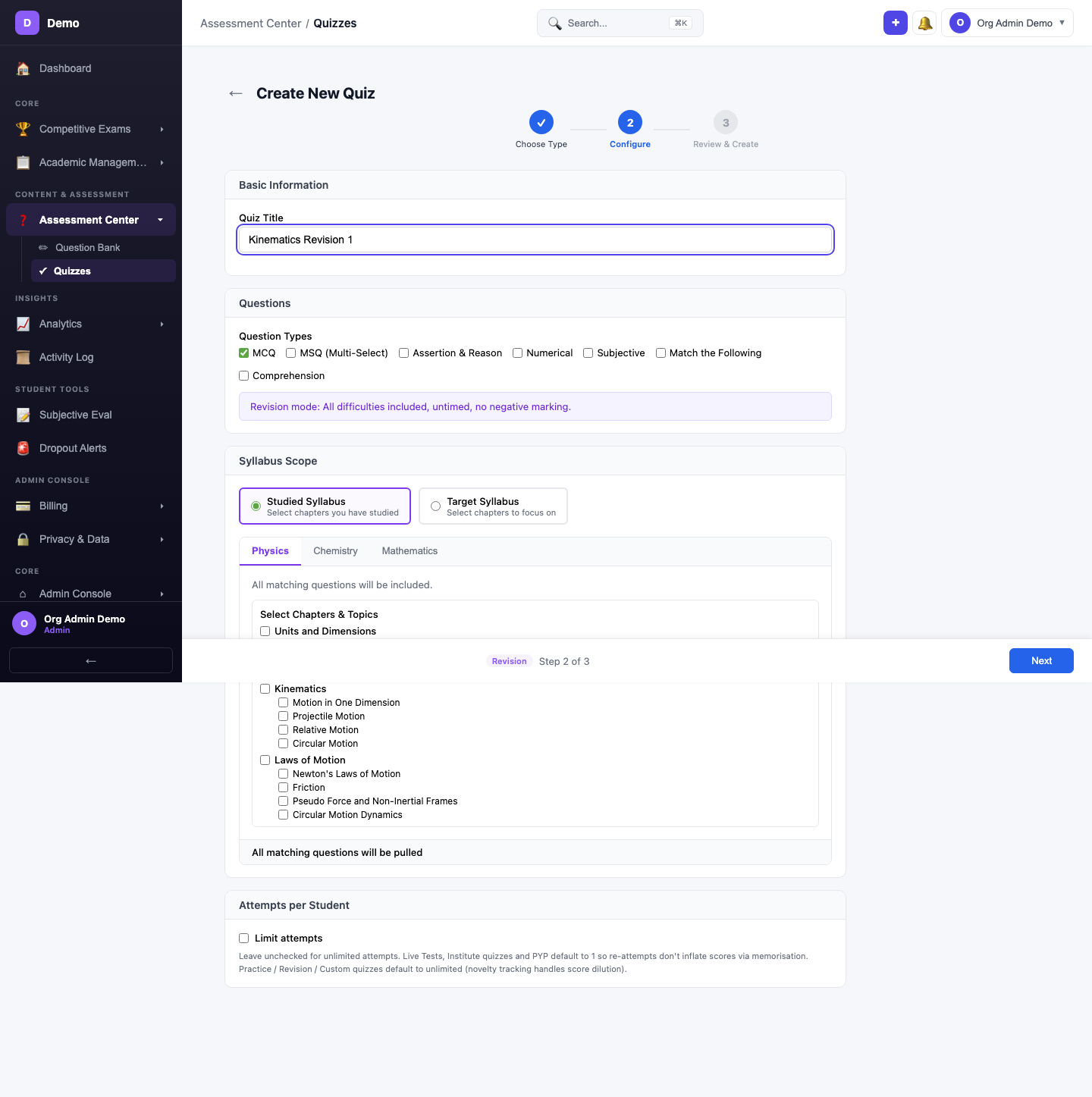
Select Studied Syllabus
Select Studied Syllabus mode under Syllabus Scope to narrow the quiz to specific chapters you've covered.
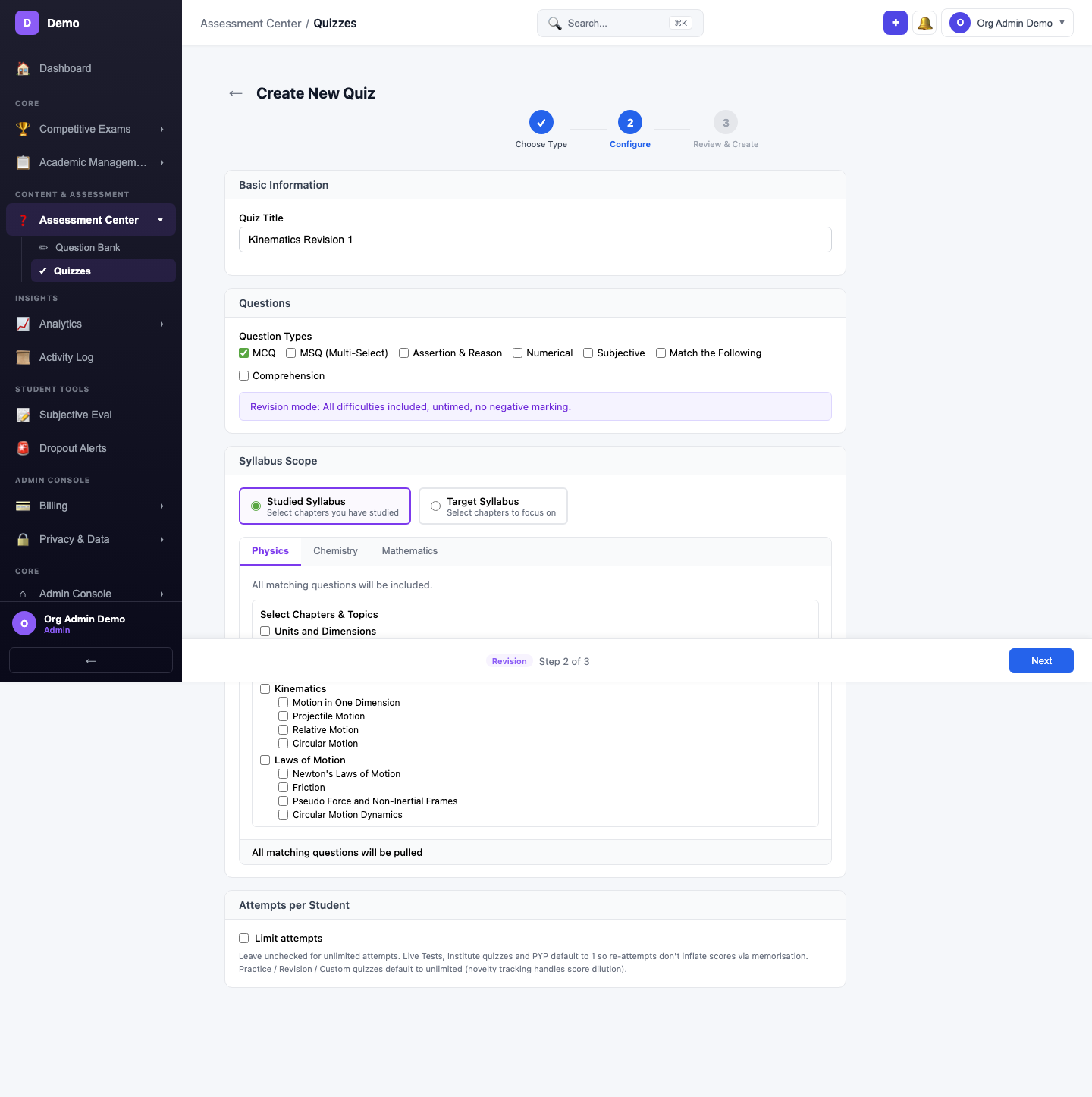
| Setting | Description |
|---|---|
| Quiz Title | Display name for students (e.g., Kinematics Revision 1) |
| Syllabus Mode | Full Syllabus, Studied Syllabus, or Target Syllabus |
| Subject Tabs | Per-subject chapter & topic selection |
| Number of Questions | How many questions to include |
| Duration | Time limit in minutes (0 = untimed) |
| Difficulty | Easy, Medium, Hard, Mixed, or Adaptive |
| Negative Marking | Enable/disable with deduction amount |
| Shuffle Questions | Randomize question order |
| Shuffle Options | Randomize option order |
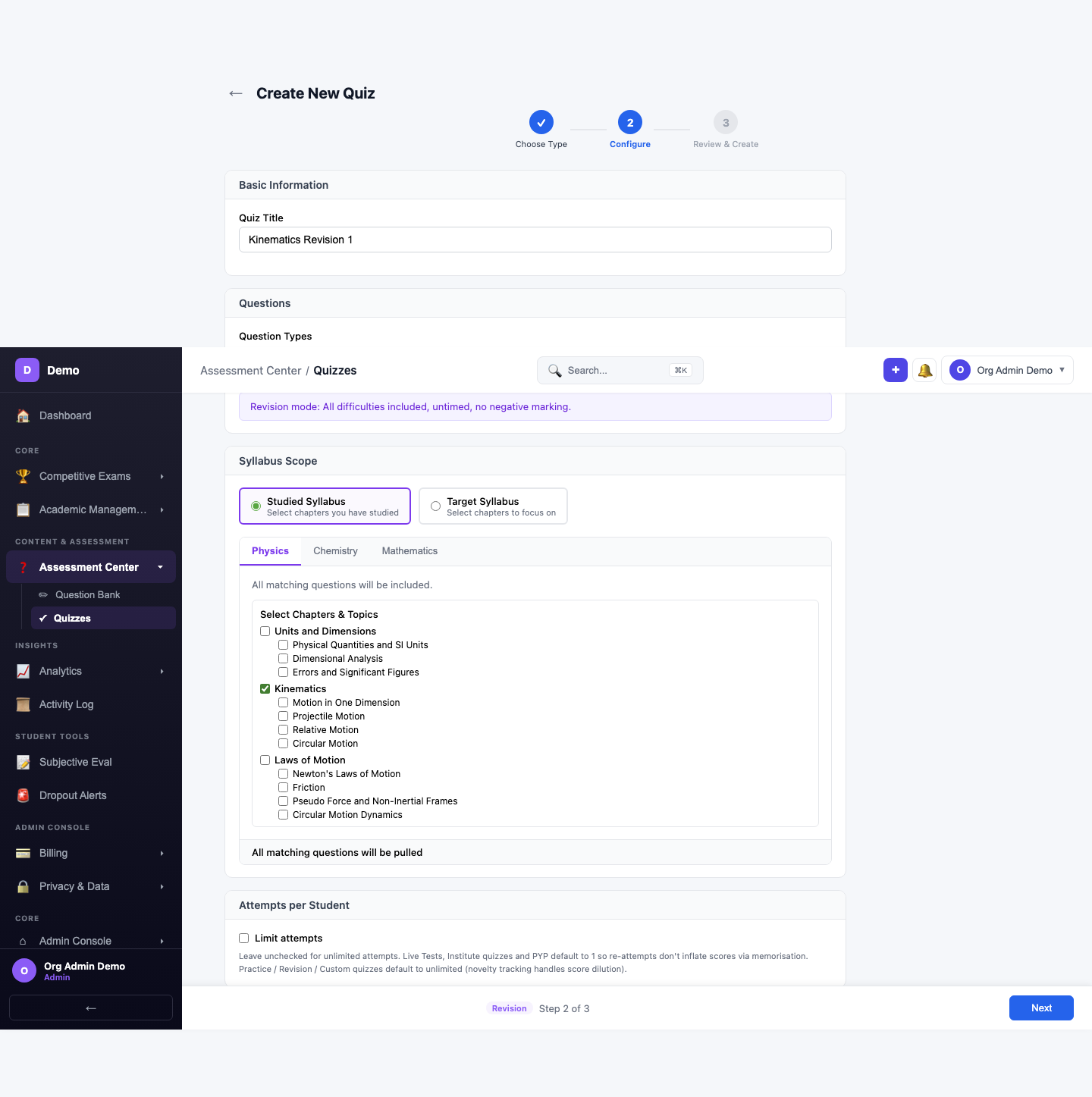
Select Chapter — Kinematics
Check the Kinematics chapter from the chapter tree. Only questions from selected chapters will be included in the quiz.
Step 3 — Review & Create
Review all quiz settings — title, exam, subjects, syllabus mode, and selected chapters.
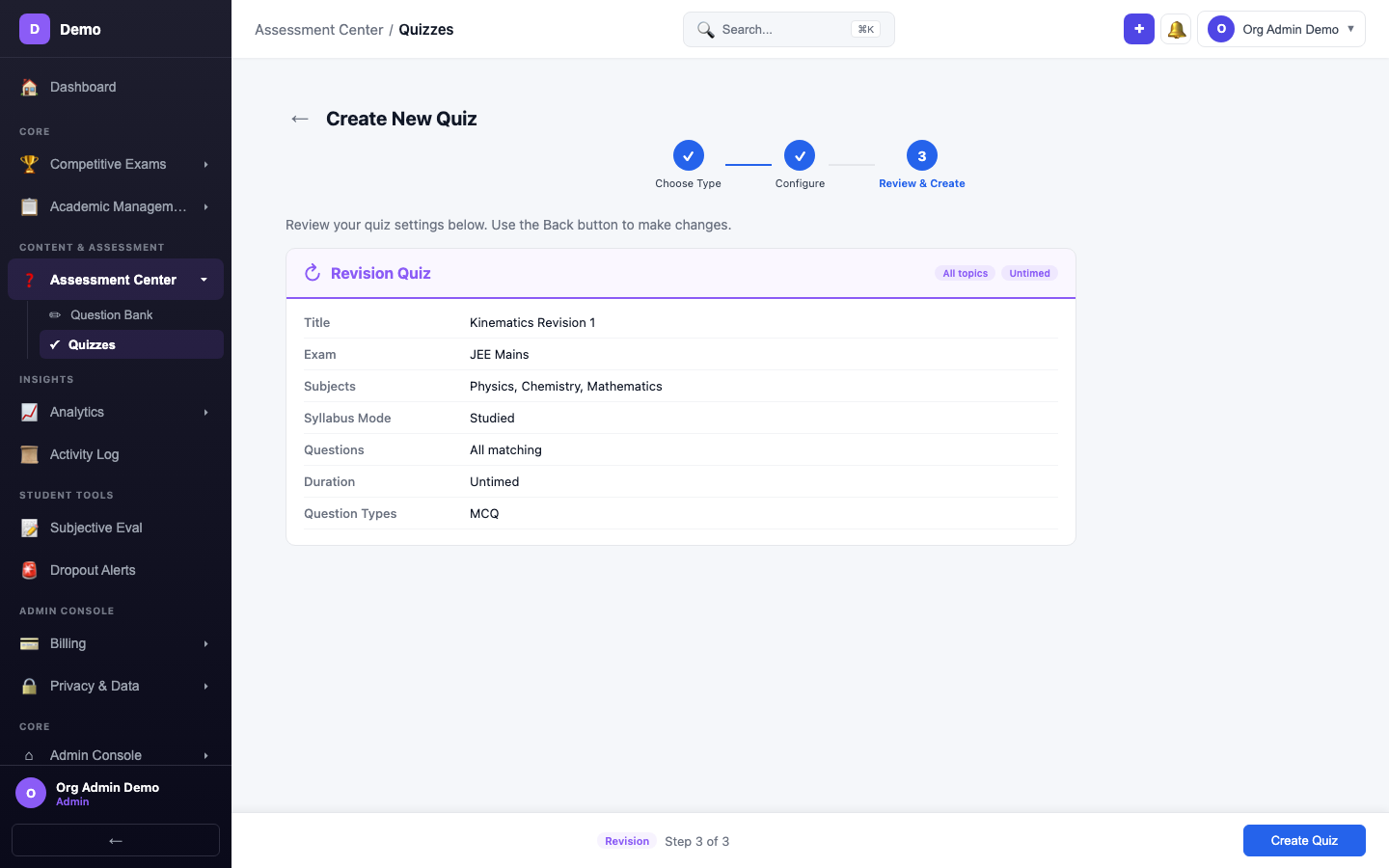
Click Create Quiz to finalize.
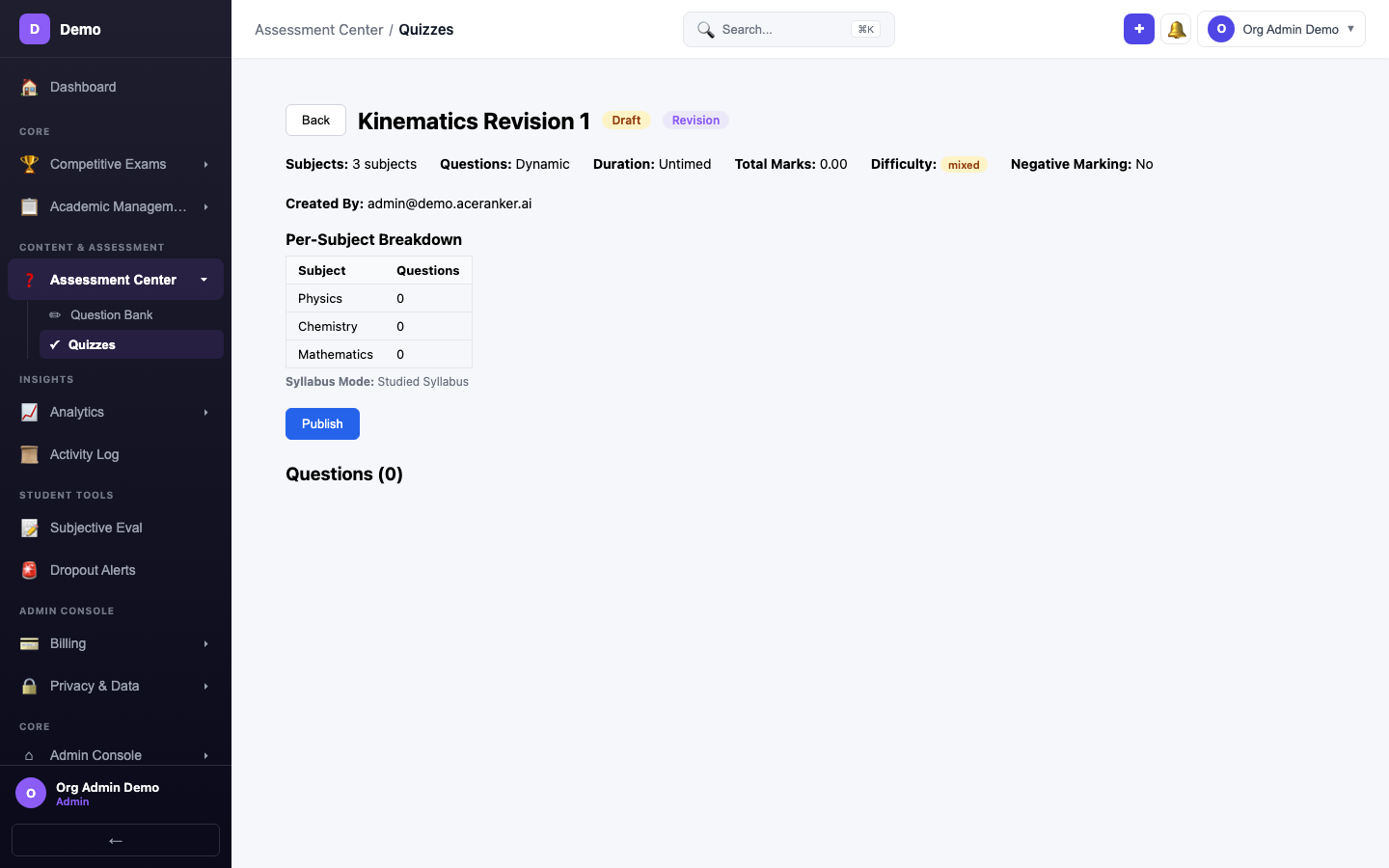
Quiz Created
The newly created Kinematics Revision 1 quiz appears in the quiz list with Draft status, ready to be published.
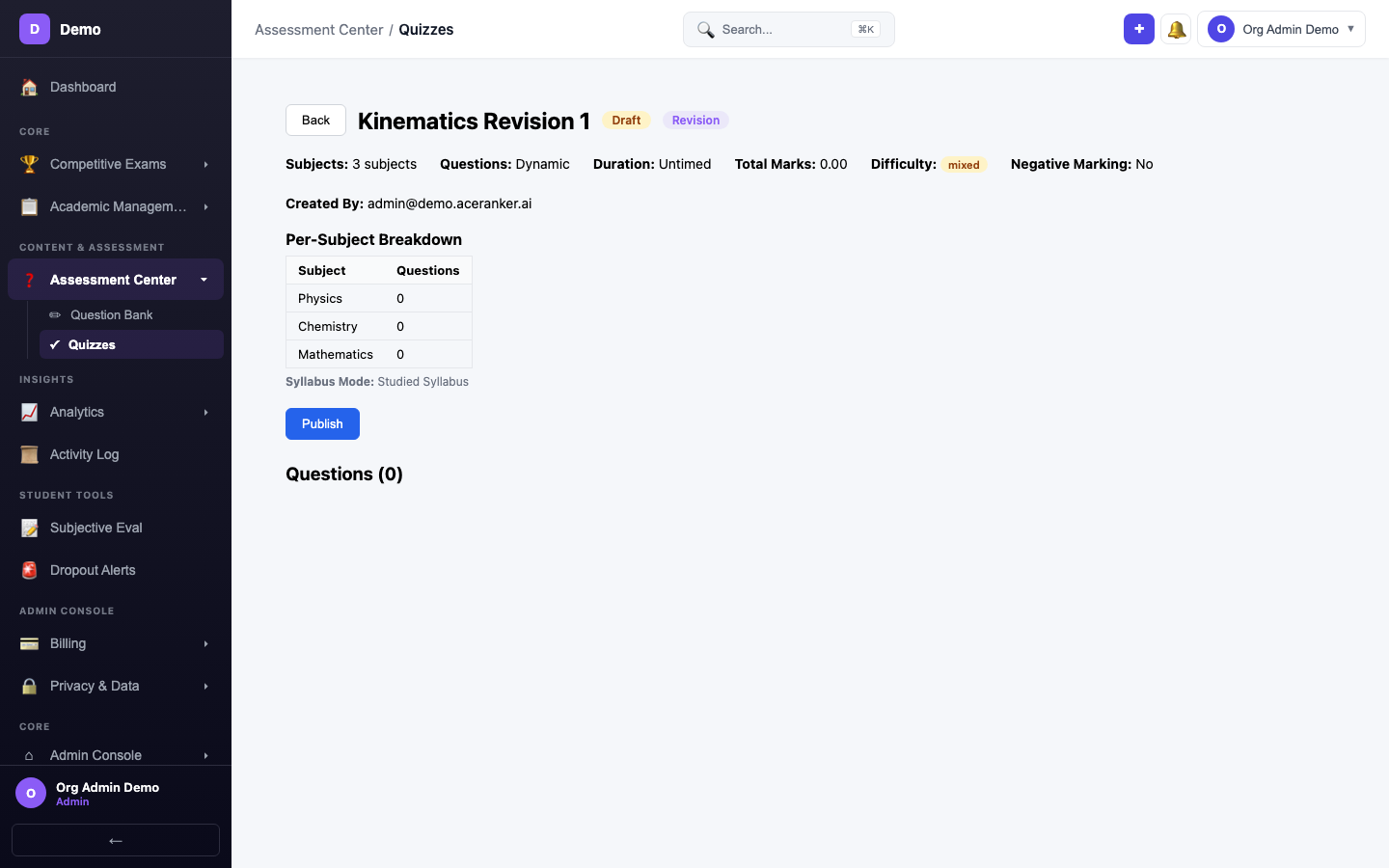
Publishing
After creation, quizzes are in Draft status. To make them available to students:
- Click Publish on individual quizzes
- Or use Bulk Publish to publish multiple at once
Post-Quiz Hooks
When a student completes a quiz, the platform automatically:
- Updates spaced repetition cards based on performance
- Recalculates mastery levels per topic
- Awards gamification XP points
- Generates flash cards for incorrect answers
- Sends email notification with results